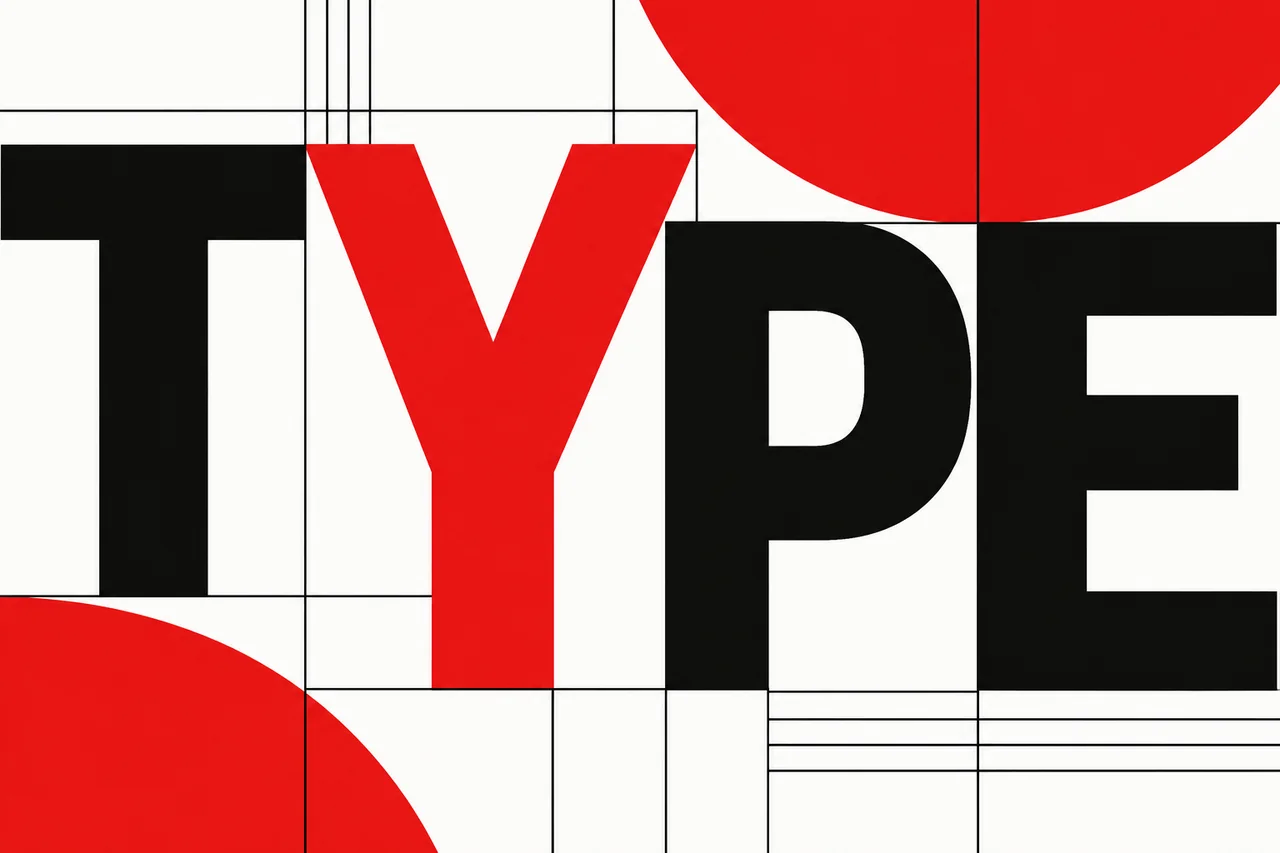
Decide the exact copy first, give it a clear hierarchy, and choose generated lettering or editable text according to how often the words will change.
Choose how the words belong in the picture
AI image tools can make lettering part of a visual: a hand-painted storefront, a bold poster headline, or a name wrapped around a packaging concept. They can also help produce a complete layout that you refine afterward. The first decision is whether the words should behave like scenery or editable design elements.
Generate integrated lettering when texture, perspective, and atmosphere are central. Use editable text layers when names, offers, dates, or translations will change. For a working campaign, combining generated artwork with controlled typography often gives you both the visual idea and a straightforward revision process.
Ideogram: move from generated design to editable copy
Ideogram 4.5 includes text modification among its documented editing uses. A particularly useful companion is Layerize Text: it detects lettering in an image, reconstructs the background beneath it, and creates editable text layers in Studio. You can change the words, type styling, and position without asking for an entirely new composition.
Layerize Text is a credit-using beta. Clear, straight text is a better starting point than decorative or curved lettering; recreated fonts and backgrounds need review. Studio uses its own font library. The Ideogram record covers the underlying generation and editing model.
GPT Image: describe the entire layout
GPT Image is useful when the brief includes both the picture and a specific arrangement of headings, labels, or supporting copy. OpenAI’s image prompting guide recommends exact quoted wording, placement, and typography instructions. Its editing workflow also lets you request a focused change while naming the elements to retain.
Precise placement and text clarity can still require correction, as the generation guide notes. Keep the approved copy beside the output. The GPT Image record summarizes the available output and editing routes.
Gemini: work out the copy, then compose the image
Gemini’s image workflow supports text-rich visuals such as menus, infographics, and marketing graphics. Google’s image-generation guide recommends deciding the text first, then asking for an image containing it, with descriptive instructions for the type style and overall design.
That two-stage approach suits a brief that needs a headline, short explanation, and illustration. Finish the wording before moving to layout. Nano Banana 2.1 supports 1K, 2K, and 4K output; choose the size around the intended display rather than using resolution as a substitute for readable hierarchy.
Midjourney: short lettering inside an expressive scene
Midjourney’s text-generation instructions use double quotation marks around the words to render. Short phrases in the standard Latin alphabet are its documented sweet spot. This makes it a practical direction for a few words on a sign, a cover concept, or a typographic illustration.
If the lettering wanders, its guide suggests Raw mode, lower Stylize, or a targeted edit. Keep the exact wording short and prominent. For general generation features, see the Midjourney record.
Write a miniature design specification
Before prompting, write the final copy in plain text and arrange it in reading order. Separate the headline, supporting line, and small details. Decide which single message should be visible first on a phone screen or from across a room.
- Copy: exact wording, capitalization, punctuation, and numerals.
- Hierarchy: largest headline, smaller supporting line, restrained footer.
- Placement: top third, centered panel, or a clear area beside the subject.
- Appearance: broad type category, contrast, spacing, and background texture.
- Scope: specify whether additional lettering is welcome.
Keep a small poster to one main message. If the information needs several paragraphs, build a document layout instead of squeezing everything into a decorative image.
Example prompt: a fictional market poster
Example generation prompt: Design a portrait poster for a fictional community market. At the top, place the exact headline "SUNROOM MARKET" on two centered lines in large dark-green, bold sans-serif lettering. Beneath it, place "Fresh finds. Slow mornings." in smaller type. The lower half contains a warm illustration of oranges, flowers, and striped market bags on a cream background. Give the headline generous empty space and keep every letter separate from the illustration. Use only these two text blocks. No dates, prices, addresses, or additional words.
This brief lets the illustration carry the mood while the text has a clear job. Add real event details later from approved copy rather than letting the image model invent them.
Example prompt: lettering that belongs in the scene
Example generation prompt: An illustrated nighttime bookstore window with a warm amber glow. Above the window, a flat dark-blue sign has the words "OPEN LATE" in large cream block letters. View the storefront nearly straight on so the sign is easy to read. Shelves and a reading lamp are visible inside. Quiet ink-and-gouache style. The sign is the only readable text in the scene.
Here, the lettering is part of the environment. Keep the sign broad enough to hold the phrase and avoid asking for ornate decoration, a steep angle, and tiny type simultaneously.
Revise the words without losing the composition
When the visual is right, separate copy corrections from art direction. For an image edit, name the exact replacement and what should remain. For editable layers, replace the string directly, then adjust wrapping and alignment.
Example edit prompt: Replace the headline with "SUNROOM WEEKEND". Retain the original cream background, illustration, color palette, and two-line centered headline arrangement. Keep the supporting line unchanged. Do not add another text block.
In a layer-based workflow, a longer phrase may need a smaller size or a wider text box. Make that decision deliberately; shrinking every line to fit can weaken the hierarchy.
Finish at the size people will actually read
Check spelling against the approved text, then inspect punctuation, repeated letters, spacing, and any small details the tool added. View the entire graphic at its final display size as well as close up. A headline can look sharp at full resolution yet become cramped in a feed thumbnail.
Keep the editable version alongside the exported image whenever possible. For a series, reuse the layout and replace the copy systematically. For dates, prices, translations, and chart labels, verify the meaning as well as the lettering. The finished design should communicate the right message clearly, not simply contain plausible-looking text.
Before you choose a tool
- Define the output you need before comparing plans.
- Save the inputs, settings, date, and rejected results.
- Check current provider terms and export restrictions.
- Include correction time in your comparison.
Sources
Official sources reviewed 2026-10-21.