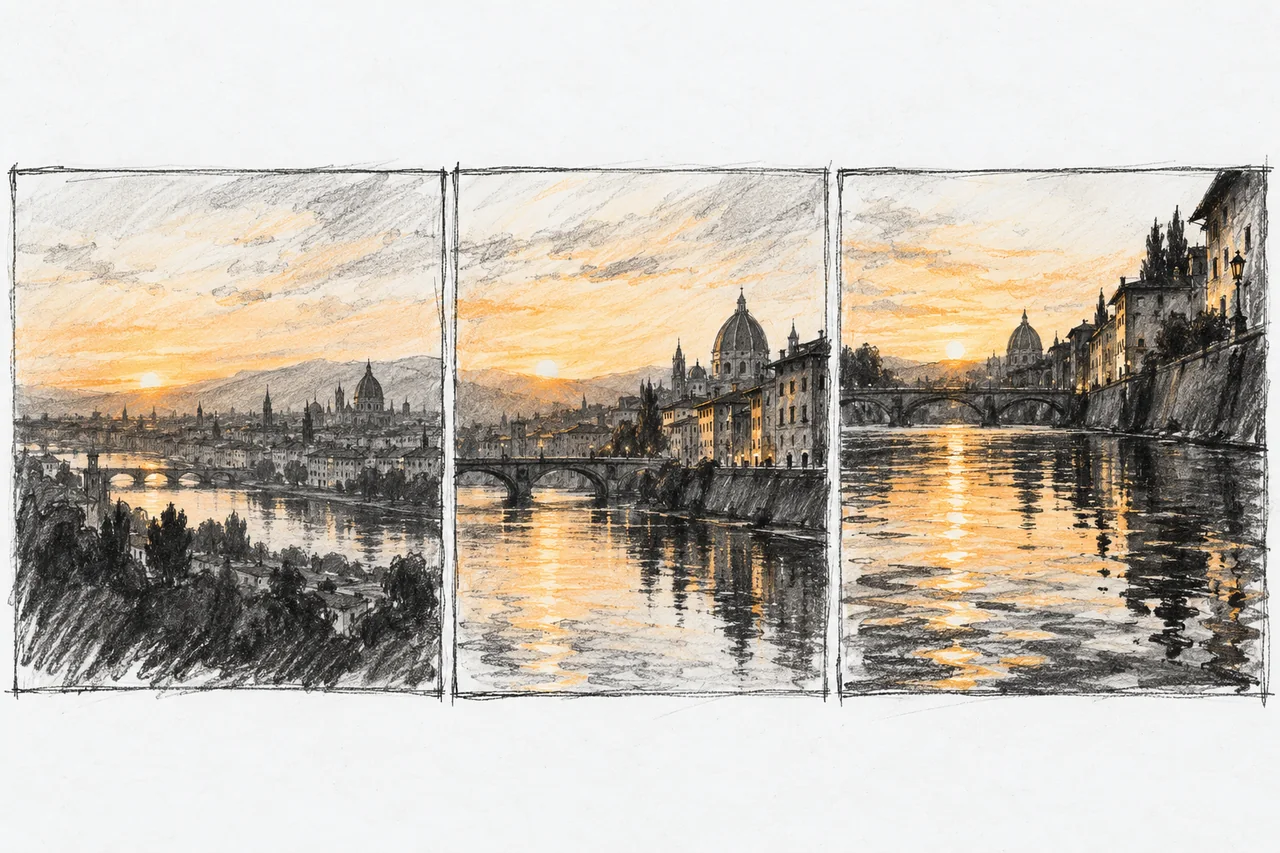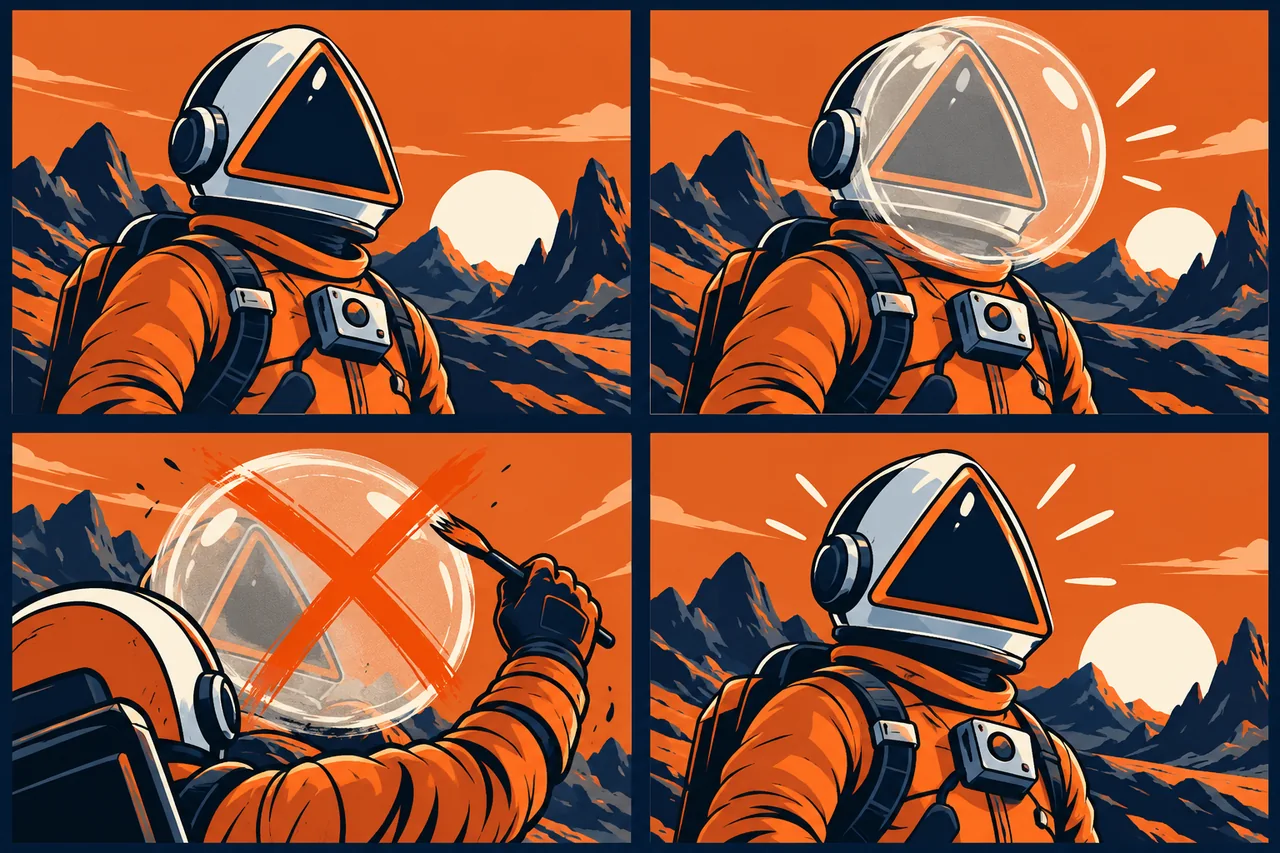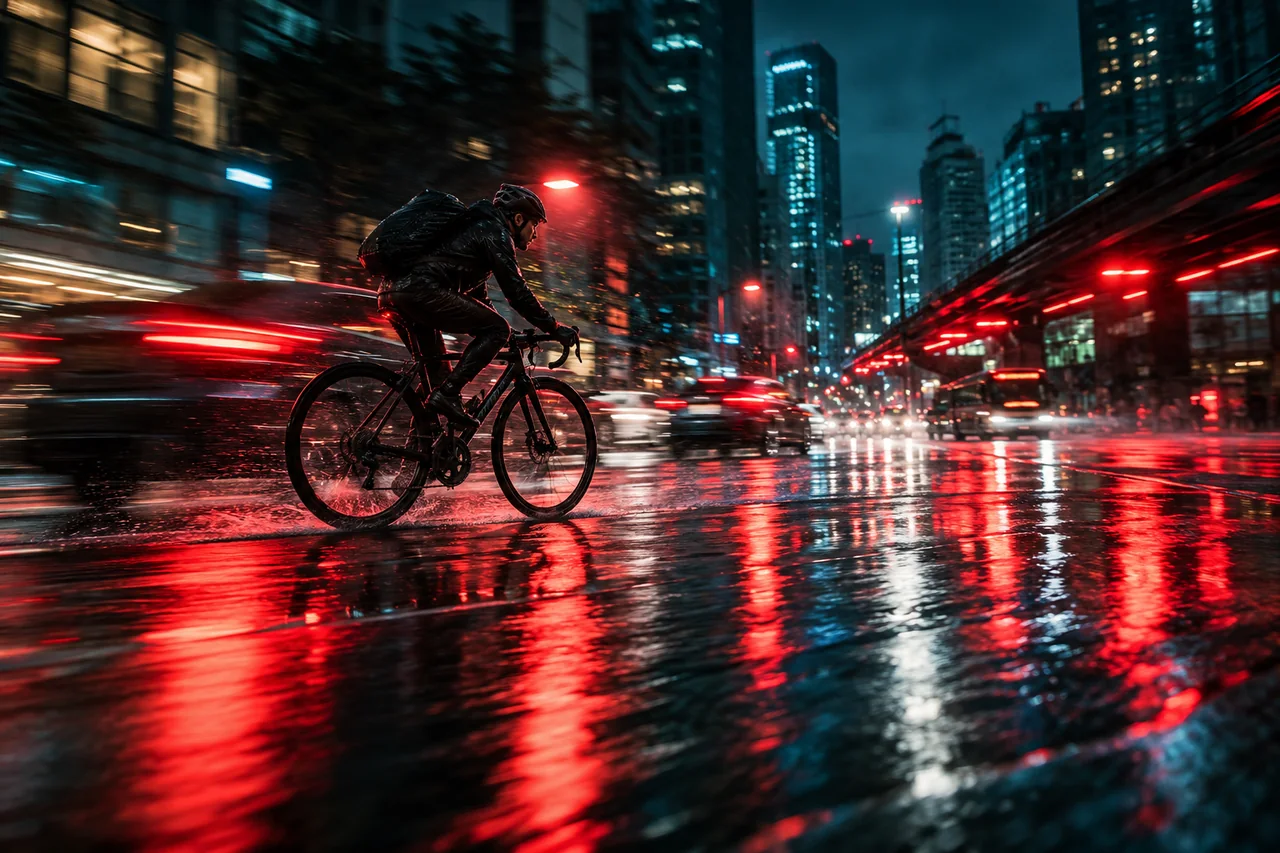
Let the photograph carry the visual design and give the prompt a specific motion job. Start with one useful shot, refine its movement, and finish the timing in an editor.
Give the photograph a reason to move
A good photo animation adds something the still cannot: steam drifting from a cup, a person acknowledging the camera, or a slow reveal of a landscape. Start with that small payoff. You are making a shot, not simply asking the picture to become busy.
For a product page, movement can draw attention to a material or detail. For a travel story, it can establish atmosphere. For a portrait, a glance or subtle change of expression may be enough. Decide what the viewer should notice, then choose the subject action and camera behavior that serve it.
Choose a mode that matches the shot
Runway Gen-4.5 is a useful starting point for a single photograph with a written motion brief. Its web workflow supports image-to-video clips from two to ten seconds, with landscape, portrait, square, and other aspect ratios. Base output is 720p, and access starts at the Standard plan.
Pika 2.5 offers a simple distinction: Omni takes a prompt and optional single photo; Frames connects two to five ordered stills. Photo animation supports five- or ten-second clips up to 1080p. Choose Frames when the ending composition is already designed. A five-keyframe sequence renders at 720p, and Pika 2.5 output is silent, so include sound in the finishing stage if needed.
Budget for takes, not just finished seconds
For the Runway workflow above, Standard is the entry paid plan: 625 credits per month, displayed at US$12/month with annual billing. That is an annual commitment, not a US$12 one-month purchase. Gen-4.5 uses 60 credits for a five-second take. If you spend the allowance only on those generations, it covers ten complete attempts with 25 credits remaining.
For a three-shot product sequence, that means roughly three attempts per shot, not ten finished adverts. Reserve some capacity for the difficult shot before spending the balance on decorative alternatives. A shorter motion study can help you choose the camera direction before generating the full-length take.
Choose the handoff before choosing an upgrade
A larger plan is useful when the editor needs a different master file, not automatically because the scene is more ambitious. Runway's creation guide reserves ProRes and PNG-sequence generation for Max, Unlimited (Legacy), and Enterprise. Select the format before generation; it adds five credits per second, making a five-second Gen-4.5 take 85 credits rather than 60. Confirm that the person finishing the video actually needs that handoff.
For a designed start-to-finish transition, open Pika 2.5 and choose Frames rather than Omni. If the delivery brief requires 1080p, avoid a five-keyframe sequence: that mode renders at 720p. Split the storyboard into shorter sequences with fewer keyframes, then assemble them in an editor. This preserves the intended resolution option while giving you separate cuts to revise.
Prepare a frame with somewhere to go
Crop for the final placement before uploading: a vertical social clip and a wide website banner need different compositions. Leave space in the direction a person will turn or an object will travel. If the animation is only a gentle push toward a product, check that the tighter framing will still include its important features.
Inspect the still at full size. Clean up distracting marks and make the intended focal point easy to read. For a branded object, keep an untouched copy of the approved packaging beside your working image. If exact lettering must remain visible, a restrained shot gives you a simpler review than a full rotation revealing unseen sides.
Write the motion, not the photograph again
Runway’s image-to-video prompting guide treats the image as the first frame and recommends concentrating the text on movement. A useful brief answers three questions: what moves, how it moves, and what the camera does.
Example prompt: “The camera moves slowly closer to the ceramic cup. A thin ribbon of steam rises and curls above the rim. The cup stays on the table throughout the shot.”
The image already provides the cup, tabletop, colors, and lighting. The prompt adds a temporal idea. Start with that one idea before adding an elaborate sequence. Choose verbs you can recognize in playback: turns, drifts, opens, settles, or approaches.
Three starting photos, three useful briefs
Product detail example: “The camera slides slowly from left to right across the bag. A soft highlight travels along the leather grain. The bag remains upright in its original position.” Use this when texture is the message; review stitching, edges, and the logo throughout the move.
Portrait example: “The person lifts their gaze toward the camera, gives a small relaxed smile, and settles. The camera stays at eye level in the same position.” This gives the face one clear performance rather than a complicated gesture involving hands and props. Use a photograph you are permitted to animate.
Landscape example: “A light breeze moves the grass in the foreground. The camera gently advances along the path toward the distant cottage. The clouds drift slowly across the sky.” Here the foreground supplies visible motion while the destination gives the camera a purpose.
These are adaptable prompt examples. Match the action to what your actual photograph shows rather than pasting a camera move into every scene.
Make the first pass in Runway
- Open Gen-4.5 from Apps View or the Video model selector.
- Upload the prepared photograph into the prompt window.
- Enter the motion brief, then check the crop and aspect ratio.
- Select the duration and frame rate. The documented choices are 24 or 25 fps.
- Generate, then download the promising take for closer review.
These controls are described in the Gen-4.5 creation guide. For a first attempt, a five-second shot is an easy editorial starting point: enough room for one action without asking the scene to develop into a whole story.
Revise the decision that matters
Watch once at normal speed before pausing on individual frames. Is the intended moment clear? Does the camera help you see it? Then inspect the subject during the largest movement and near the end.
If the shot feels restless, simplify the camera direction. If the product changes shape, try a smaller movement that reveals less new geometry. If the action is rushed, shorten the action list or give it more time. Change one of these choices per revision so you can see what helped.
Save each useful take with its prompt and settings. A quiet version and a more energetic version can both belong in the edit; they serve different placements.
Finish the clip, not just the generation
Trim to the strongest movement and allow a brief settling moment before the cut. Add titles, exact brand copy, and any required soundtrack in your editor. For a looping placement, compare the ending with the opening and build the join deliberately rather than assuming any short clip will repeat smoothly.
Check the exported file in its real setting: a phone screen, presentation, or website layout. Look for an awkward crop, unreadable details, or a cut that interrupts the gesture. Keep the original photograph, selected clip, and final export together so the next revision begins from a clear starting point.
Before you choose a tool
- Define the output you need before comparing plans.
- Save the inputs, settings, date, and rejected results.
- Check current provider terms and export restrictions.
- Include correction time in your comparison.
Sources
Official sources reviewed 2026-10-21.